


















Skip to content

Everything you need to back up, restore, and replicate SQLite

Set up your own server, connect your app in one call, and learn how each part of Litebackup works, with examples you can copy into your code.

Contents

Each section explains one part of Litebackup and ends with examples in TypeScript, Go, and the command line.

How Litebackup fits together

Your app keeps writing to its own SQLite files while the Litebackup client sends each change to your server, which keeps recent versions and uploads encrypted copies to your bucket.

  1. Your app

    Opens SQLite with the driver it already uses.

  2. Litebackup client

    Runs beside your app and sends changes within seconds.

  3. Your server

    Keeps recent versions on its disk and runs the console.

  4. Your bucket

    Holds encrypted copies on S3, R2, Google Cloud Storage, or another S3-compatible store.

Start with a server of your own

Your Litebackup server is a small Linux VM that you run, and every machine with SQLite files connects to it.

  • Create a VM

    Any Linux VM with a public IP, an SSD, and inbound TCP 443 open will do, on amd64 or arm64. Debian 13 and Ubuntu 26.04 LTS are the usual choices, and Fedora, RHEL, Rocky Linux, AlmaLinux, Amazon Linux, openSUSE, and Arch Linux work as well. For a small deployment, 2 vCPUs and 4 GB of RAM are a good start, and the install guides suggest sizes for busier ones.

  • Install the server

    Run the installer over SSH. It checks the download, installs a system service, and prints a link that you open in your browser to claim the instance, which gives it an HTTPS address such as acme.litebackup.cloud and a web console.

  • Finish setup in the console

    Connect a bucket, which Litebackup tests before it uses it, then save the recovery kit or set a recovery passphrase and keep it somewhere other than the server. Finally, choose how long to keep backups. Machines that join before setup is complete wait and then continue on their own.

  • Add a machine

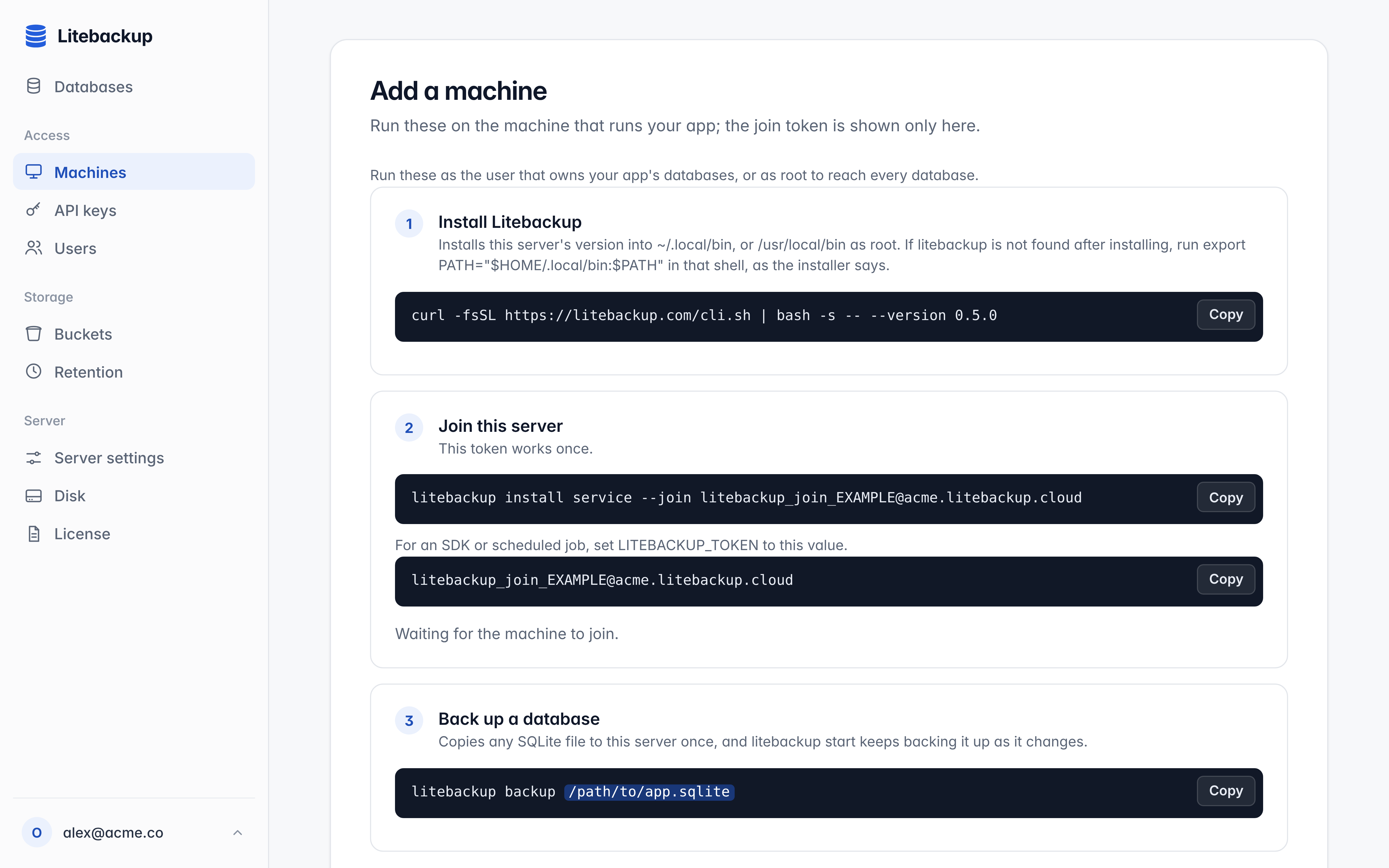
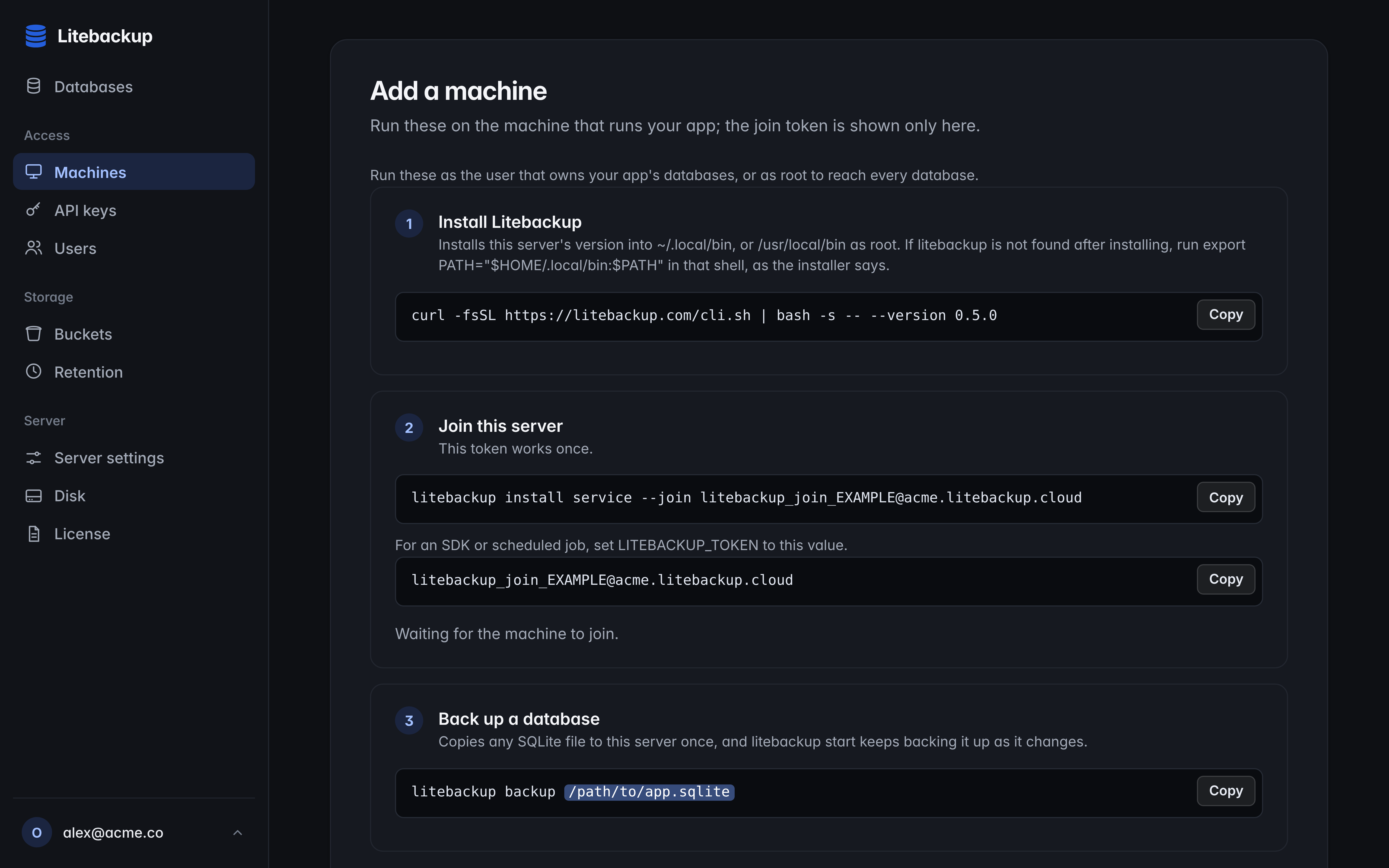
    Open Machines and choose Add machine to create a join token. The token looks like JOIN_TOKEN@acme.litebackup.cloud and carries both a secret and your server's address, so it is the only thing a new machine needs. The machine uses it once to join and then keeps a key of its own, which you can remove from the Machines page at any time.

The Add a machine screen with install, join, and back-up steps, each with a Copy button The Add a machine screen with install, join, and back-up steps, each with a Copy button

Install your server and join a machine

Run the first command on your Litebackup server and the second on each machine that holds SQLite files, as the user that owns them.

# On your Litebackup server, over SSH, as a user with sudo access:
curl -fsSL https://litebackup.com/server.sh | bash

# Open the link it prints to claim the instance, then finish setup in your browser.
# Behind a load balancer or NAT that forwards TCP 443 with TLS passthrough:
curl -fsSL https://litebackup.com/server.sh | bash -s -- --address YOUR_PUBLIC_IP

Add backups to your app in one call

The SDK starts the Litebackup client when it is not running and joins your server with LITEBACKUP_TOKEN the first time, so your app needs no other setup.

// 1. Install your Litebackup server: litebackup.com/install
// 2. In your shell, with the token from Machines, Add machine in your console:
//      npm install @litebackup/sdk better-sqlite3
//      export LITEBACKUP_TOKEN=JOIN_TOKEN@HOST

import Database from "better-sqlite3";
import { Litebackup } from "@litebackup/sdk";

const litebackup = new Litebackup();

const db = new Database("/var/lib/app/main.sqlite");
db.exec("CREATE TABLE IF NOT EXISTS notes (body TEXT)");

// Returns once the rule is saved; the litebackup client keeps backing up from here.
await litebackup.backups.start(db);

Back up while your app keeps writing

Litebackup reads committed changes through SQLite itself, so your app keeps its driver, its queries, and its speed.

  • Continuous backup

    litebackup start and backups.start save a backup rule on this machine and return as soon as it is stored. From then on the client finds the matching files and sends each change to your server within seconds. It keeps backing up after your app exits, and a client installed as a service starts again after a reboot.

  • Files, directories, and globs

    Pass one file, a directory, or a quoted glob such as '/var/lib/app/tenants/**/*.sqlite'. A rule picks up new matching files as they appear and skips SQLite's -wal, -shm, and -journal files, so there is nothing else to list. Databases in WAL and rollback-journal mode both work, and only in-memory databases, which have no file, cannot be backed up.

  • Names

    Each database has a name on your server, which is what you restore, replicate, and acquire. A file keeps its file name by default, with its case and spelling preserved, and a second argument sets an exact name or a prefix ending in a slash. A recursive glob keeps the relative path, so /data/a/b/42.sqlite under the prefix tenants/ becomes tenants/a/b/42.sqlite.

  • One writer for each name

    A name has one writer at a time, and Litebackup never merges two copies. When a second machine starts backing up a name that another machine writes, its status reports busy and nothing is overwritten, so give separate databases separate names or prefixes.

  • Scheduled jobs

    litebackup backup and the SDK's backup() run once in the foreground, which suits cron, CI, and Kubernetes jobs. They send the current version, wait for your server to confirm it, or for your bucket with --wait cloud, and exit with an error if any file fails.

  • Persistent storage

    Keep each database and its -wal and -shm files together on a disk or volume that survives restarts and redeploys. In a container, keep the client's state directory on a volume as well, so the machine keeps its identity and picks up where it stopped.

  • Stopping a backup

    litebackup stop NAME stops a single-file backup, and litebackup stop --rule ID stops a directory or glob rule along with the files it would find later. The local files stay where they are, and the versions on your server and in your bucket follow your retention settings.

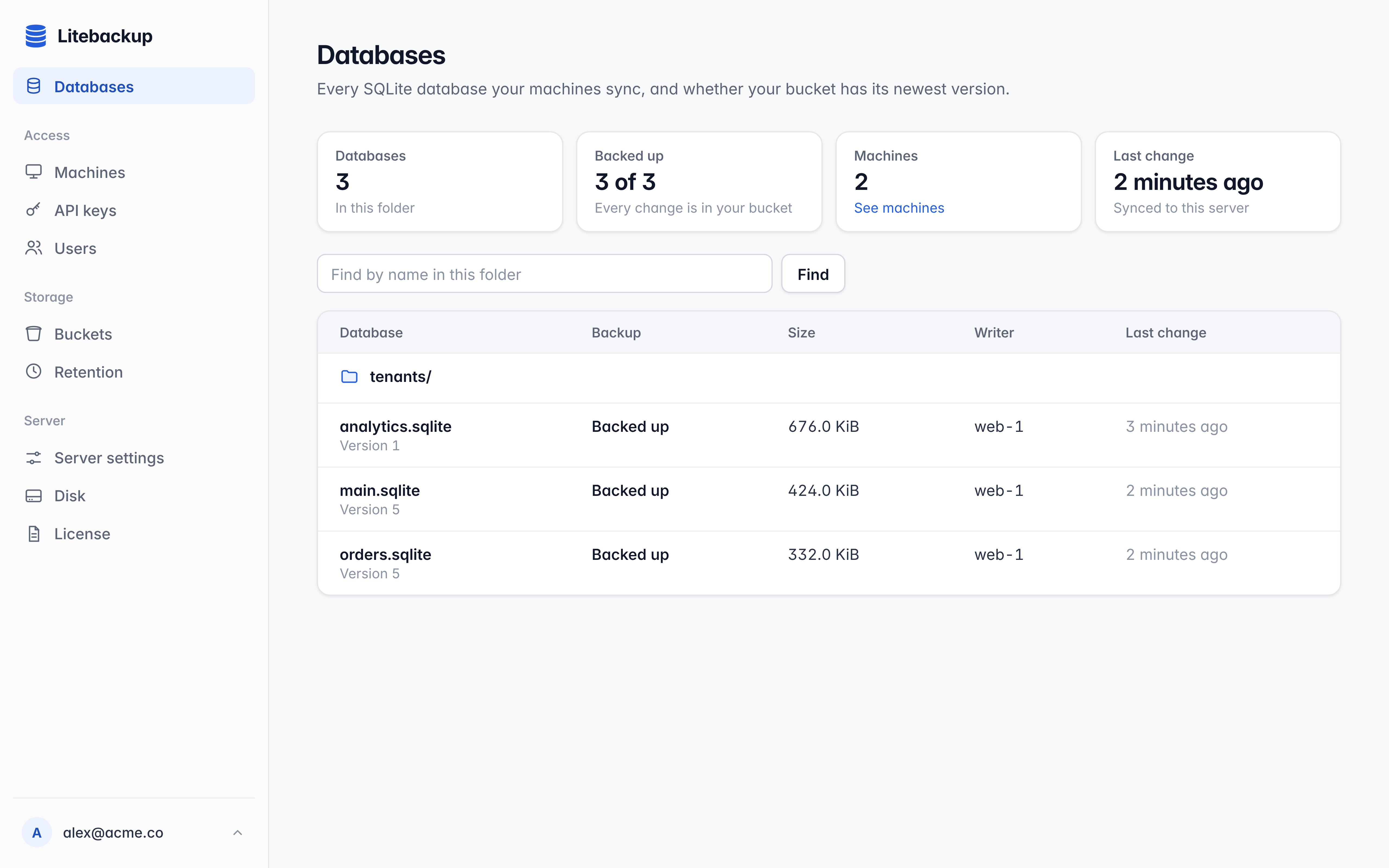
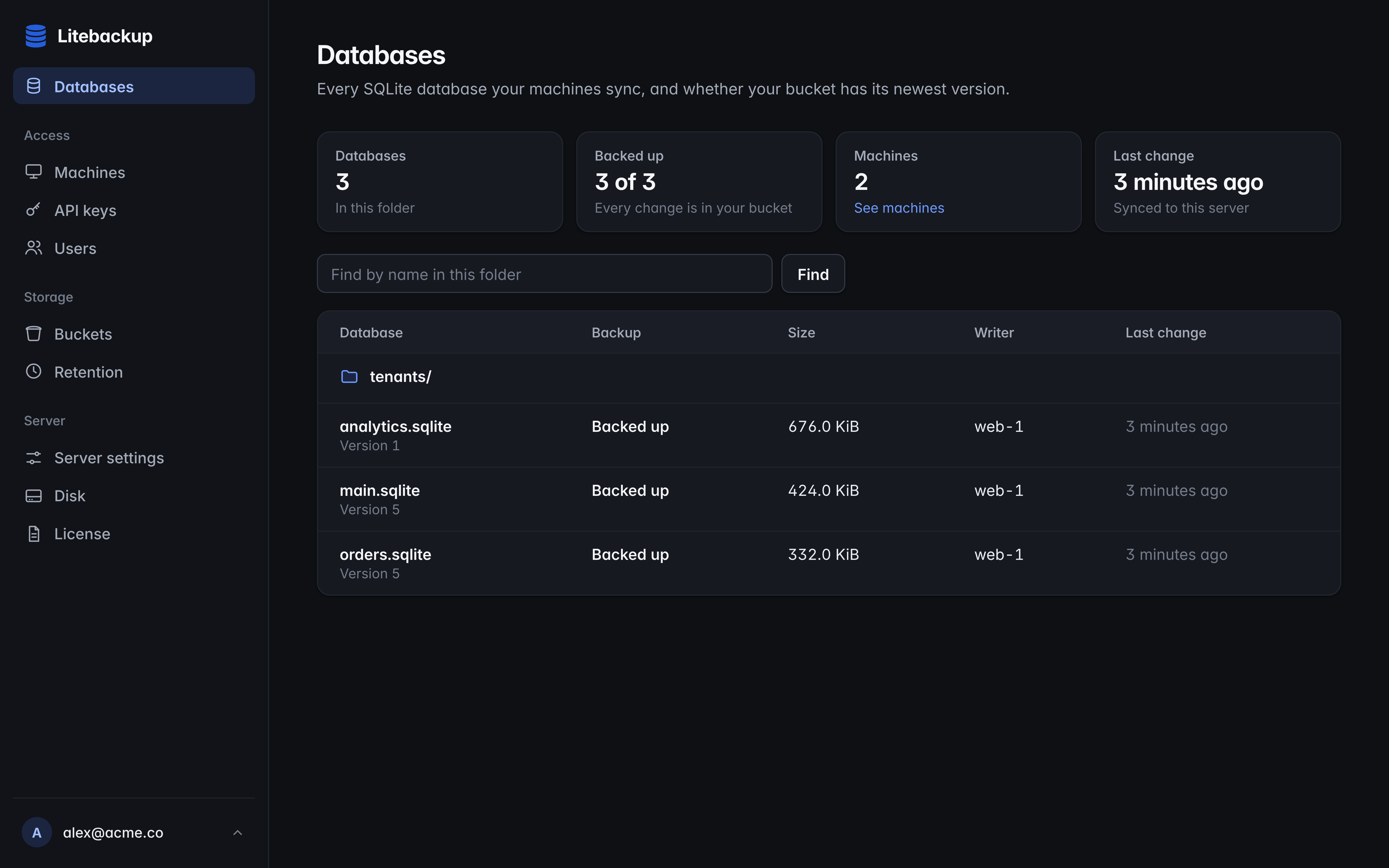
The Databases page with an overview of three backed-up databases and one machine The Databases page with an overview of three backed-up databases and one machine

Back up a file, a directory of tenants, or a scheduled export

Continuous rules keep running in the client after these calls return, while a foreground backup finishes once the version is safe.

import Database from "better-sqlite3";
import { Litebackup } from "@litebackup/sdk";

const litebackup = new Litebackup();

// Continuous backup of the database your app opens, under its own name, main.sqlite.
const db = new Database("/var/lib/app/main.sqlite");
await litebackup.backups.start(db);

// Every tenant database, including ones created later, under tenants/.
await litebackup.backups.start("/var/lib/app/tenants/*.sqlite", { prefix: "tenants/" });

// A one-time backup for a scheduled job, finished once your bucket holds it.
await litebackup.backups.once("/var/lib/app/exports/report.sqlite", {
  prefix: "scheduled/",
  wait: "cloud",
  timeout: "30m",
});

Restore any version into a new file

Choose a time or a version, and Litebackup writes a checked copy without touching the database your app uses.

  • Versions

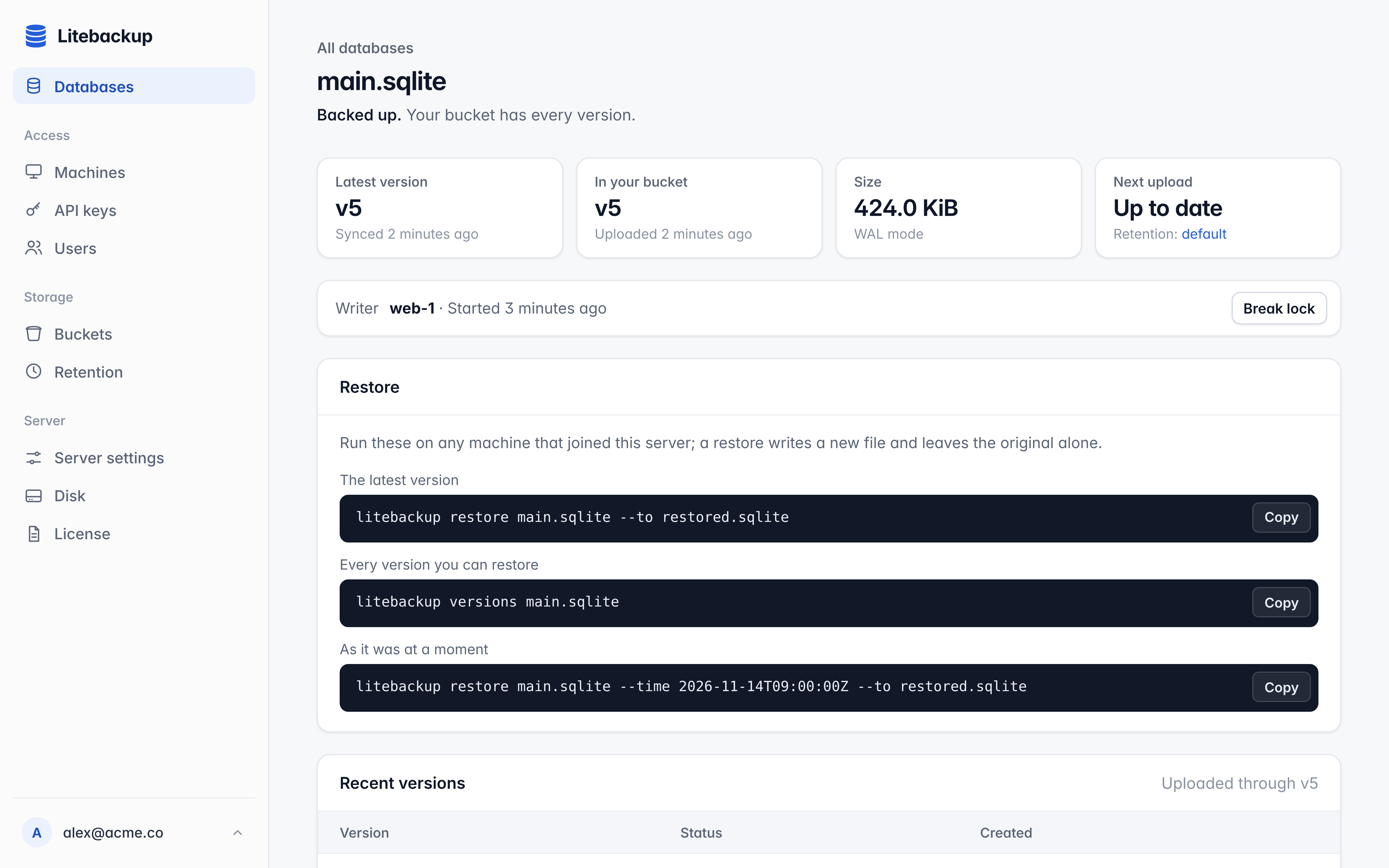
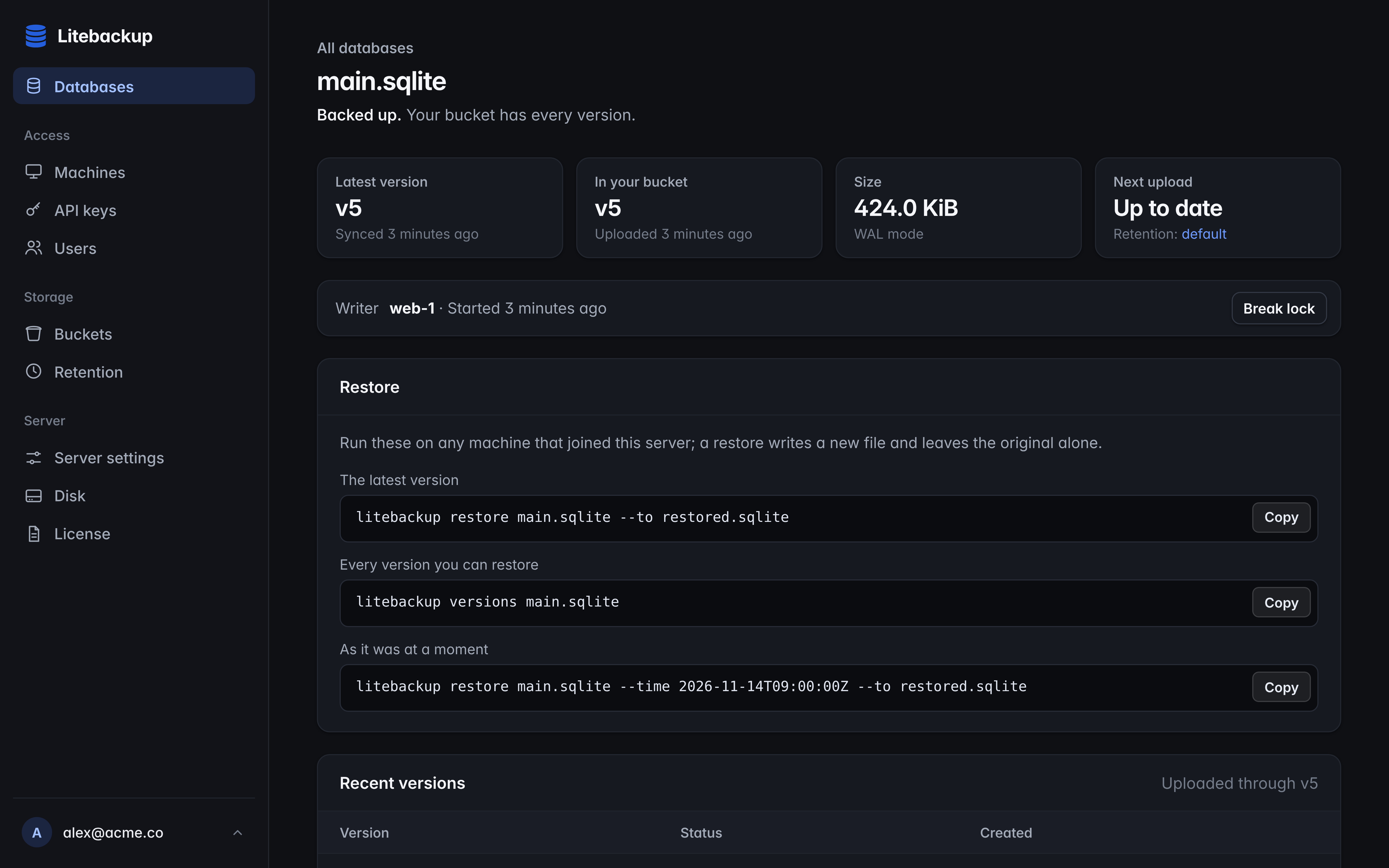
    litebackup versions NAME lists the versions your server and bucket keep, oldest first, with the time of each. How far back they reach depends on the retention you chose in the console, and the console shows each database's versions with the command that restores them.

  • By time or by version

    --time takes an RFC 3339 timestamp and restores the newest version at or before it, and --version restores one exact version from the list. With neither, you get the newest version. A restore brings back a version Litebackup captured, so a transaction that committed between two versions is not rebuilt on its own.

  • A new, checked file

    A restore always writes a new file into a directory that already exists, refuses to replace an existing file with the code exists, and runs SQLite's quick_check before it returns, so the copy you get is ready to open.

  • Any machine that joined

    You can restore on the machine that writes the database or on any other machine that joined your server. That lets you inspect a copy on a laptop or rehearse a recovery without going near production.

  • Putting a restored copy into service

    Check the restored file first and keep the current one until you are sure. To replace a live database, stop the app's writes, close every SQLite connection, and stop the database's backup before you move the restored file into place. Then start the backup again under the same name, and the restored contents become the newest version.

  • Only a few rows

    When only some rows were deleted or changed, restore a copy from before the mistake, attach it to the live database with SQLite's ATTACH, and insert the missing rows in one short transaction. Everything else in the live database stays as it is.

A database page showing its latest version, its copy in the bucket, and commands to restore it A database page showing its latest version, its copy in the bucket, and commands to restore it

Restore a version, or bring back deleted rows

The SQLite tab copies two missing orders from a restored copy back into the live database, and leaves rows that still exist alone.

import { Litebackup } from "@litebackup/sdk";

const litebackup = new Litebackup();

// Every version your server and bucket keep, oldest first.
console.table(await litebackup.databases.versions("main.sqlite"));

// The newest version at or before 09:30 UTC, written to a new file.
const restored = await litebackup.databases.restore("main.sqlite", {
  to: "/tmp/main-0930.sqlite",
  time: new Date("2026-11-15T09:30:00Z"),
});
console.log(`Restored version ${restored.version} to ${restored.path}`);

Read the same data on other machines

A replica is a real SQLite file on another machine that follows the database within seconds, so reporting, search, and analytics can read locally.

  • One database or a whole prefix

    Replicate a single name to a path, or follow every database under a prefix into a directory, which also brings in databases created later. replicate returns once the first version is on disk, and newer versions keep arriving in the background.

  • Readonly join tokens

    Machines that only read can join with a readonly join token, created with litebackup admin join-token create --mode ro, so a reporting machine can read your databases without being able to back up over them.

  • Write protection

    By default the client holds each replica's SQLite write lock, so a stray write fails with SQLITE_BUSY while reads carry on. The detect mode undoes local writes by rebasing the replica instead, and none leaves it to your app to open the file readonly. Whichever mode you choose, open replicas readonly in your app.

  • A few seconds behind

    A replica can trail the database by a few seconds, so send writes to the machine that backs it up. When any of several servers may need to take writes, use failover, which keeps a replica on each of them and moves the writer for you.

  • Stopping a replica

    litebackup replicate stop NAME stops following one database, and --prefix with the same --to stops a prefix. The files stay at their last version without write protection, so you can keep them or delete them.

Keep a readonly copy on a reporting machine

Run this on a second machine that joined the same server, and open the replica readonly with any driver.

import { mkdir } from "node:fs/promises";
import Database from "better-sqlite3";
import { Litebackup } from "@litebackup/sdk";

const litebackup = new Litebackup();

await mkdir("/var/lib/app/reporting", { recursive: true });

// Returns once the first version is on this machine; newer ones follow.
await litebackup.replicas.start("main.sqlite", { to: "/var/lib/app/reporting/main.sqlite", timeout: "2m" });
const db = new Database("/var/lib/app/reporting/main.sqlite", { readonly: true });
console.log(db.prepare("SELECT count(*) AS tables FROM sqlite_schema").get());

// Follow every database under tenants/, including ones created later.
await litebackup.replicas.startPrefix("tenants", { to: "/var/lib/app/reporting/tenants" });
litebackup.close(); // the replicas keep updating in the litebackup client

Keep writing when a server goes down

Run your app on two or more servers with the database at the same path, and one of them always takes the writes.

  • Origin and replicas

    Each server calls failover with the same path. The server that holds the write lock is the origin and backs the database up, while the others keep live replicas at that path and ask for the lock about once a second.

  • Takeover

    When the origin stops, one replica becomes the origin once the old session's lease runs out, about 60 seconds by default, and your server's --session-lease changes that time. Before it takes writes, the new origin catches up to the newest version your server has.

  • Sending writes to the origin

    Your app learns its role from the origin and replica events or from isOrigin. A health route that answers 200 only on the origin lets your load balancer send writes to the right server, as the example shows.

  • Conflict copies

    When an old origin returns with writes your server never received, Litebackup saves them as a conflict copy beside the database, reports conflictSaved, and turns the server into a replica. litebackup conflict list shows each copy, so you can compare it with the current database and keep what your app needs.

  • Which server writes

    litebackup writer NAME, or writer() in the SDK, names the machine that writes a database right now and tells you when its lease ends.

Fail over between servers

Start the same code on every server, and your load balancer follows the origin through its health route.

import express from "express";
import { Litebackup } from "@litebackup/sdk";

const litebackup = new Litebackup();

// Run this on every server, with the database at the same path.
const cluster = await litebackup.failovers.start("/var/lib/app/main.sqlite");
cluster.on("origin", () => console.log("This server takes writes"));
cluster.on("replica", () => console.log("Another server takes writes"));
cluster.on("conflictSaved", (path) => console.warn("Writes the server never received are saved in", path));

// Your load balancer sends writes only where this answers 200.
const app = express();
app.get("/healthz/origin", (req, res) => res.sendStatus(cluster.isOrigin ? 200 : 503));
app.listen(8080);

Give every customer or agent its own database

Separate SQLite files can be placed, restored, and moved one at a time, and Litebackup gives each of them a stable name.

  • A database for each tenant

    Keep each customer in a file of its own and back up the whole directory with one rule under a prefix such as tenants/, which also covers tenants you add later. Build file names from IDs your app created and validated, never from raw request input, and note that names keep their case, so ACME.sqlite and acme.sqlite are different databases.

  • Placing tenants on machines

    Because each name has one writer, assign each tenant to one machine and route its requests there, or use shard prefixes such as shards/eu-1/ for namespaces that are truly separate. To move a tenant, stop its writes, wait for its backup, stop the backup, and acquire the same name on the new machine before you send it traffic.

  • Acquire and release

    When any worker may handle any database, acquire it before the job opens it and release it afterwards. acquire takes the write lock and brings the newest version to this machine, release sends the final changes to your server, and the next machine to acquire the name continues from there.

  • New databases

    acquire fails with not_found for a name that has no version yet, so a typo never creates a database by accident. To create one, leave an empty file at the path first, and acquire turns it into a new database.

  • Databases in use

    acquire fails with in_use while another machine holds the database. Retry with backoff under the same name, and let your scheduler run one job at a time for each agent or tenant.

  • Closing before release

    release fails with still_open while any process has the file open, so close every connection first. Treat a failed release as a failed job and keep the local file, because it holds the changes that have not been sent yet.

  • Disk space on busy workers

    release with offload removes the local copy once your bucket holds it, and the next acquire downloads it again. For backup rules that cover many files, maximumLocalDatabases offloads the idle ones above a count you choose.

Run an agent with a database of its own

The agent acquires its database, works on it with any driver, and releases it so the next run can continue on any machine.

import { appendFile, mkdir } from "node:fs/promises";
import Database from "better-sqlite3";
import { Litebackup, LitebackupError } from "@litebackup/sdk";

const litebackup = new Litebackup();

const name = "agents/42.sqlite";
const path = "/var/lib/app/agents/42.sqlite";
await mkdir("/var/lib/app/agents", { recursive: true });
await appendFile(path, ""); // an empty file becomes a new database; existing contents stay

try {
  await litebackup.databases.acquire(name, { to: path, timeout: "2m" });
} catch (error) {
  if (error instanceof LitebackupError && error.code === "in_use") {
    console.error("This agent is running on another machine; try again later");
    process.exit(75);
  }
  throw error;
}
try {
  const db = new Database(path);
  db.exec("CREATE TABLE IF NOT EXISTS memory (id INTEGER PRIMARY KEY, body TEXT)");
  db.prepare("INSERT INTO memory (body) VALUES (?)").run("Tests passed on main");
  db.close(); // release needs every connection closed
} finally {
  // Save the run's progress even if the agent failed, then remove the local copy.
  await litebackup.databases.release(name, { wait: "cloud", offload: true, timeout: "30m" });
}

Run your server and keep your keys

Your server holds the bucket credentials and the encryption keys, so app machines only ever need a join token.

  • Your bucket

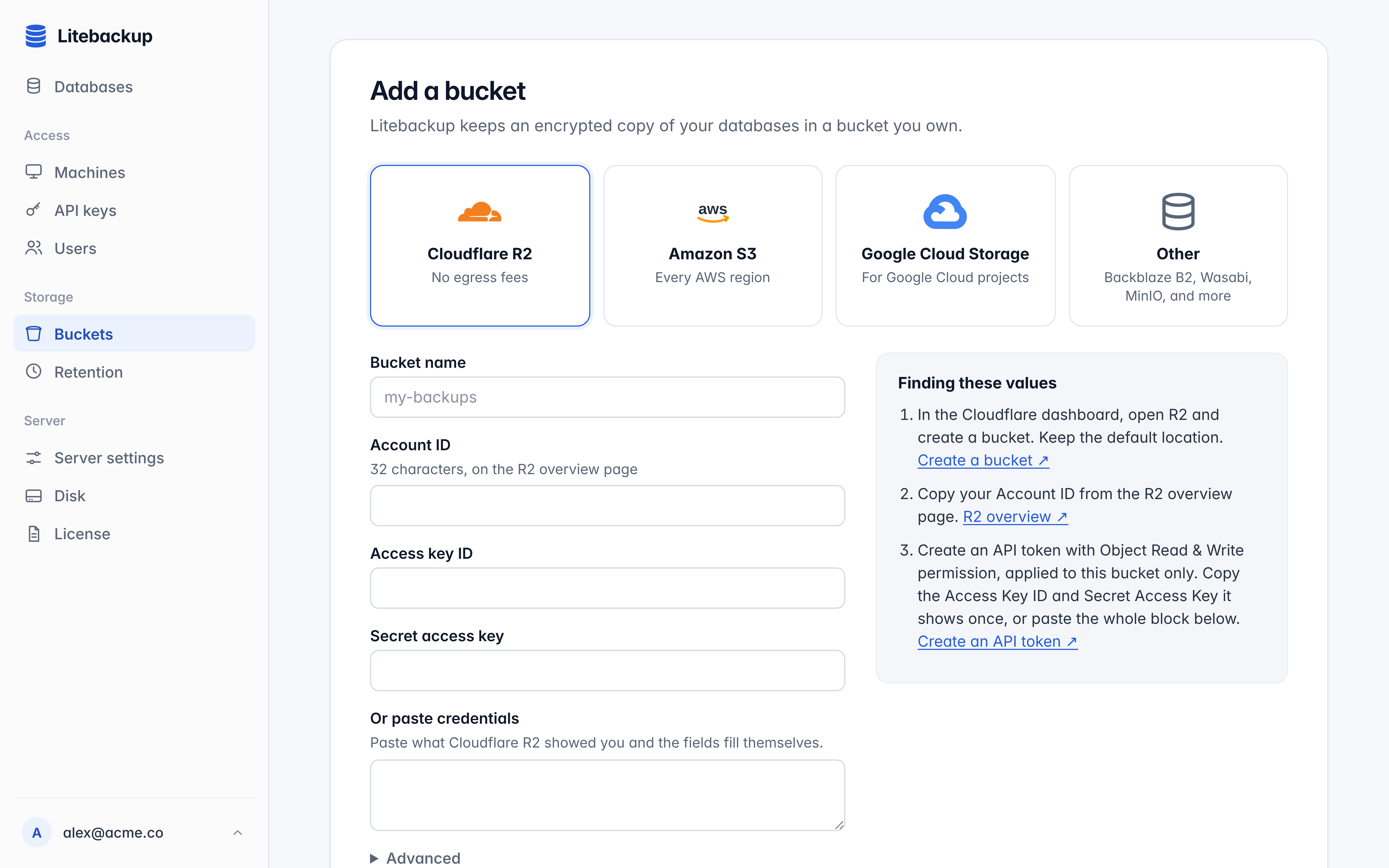
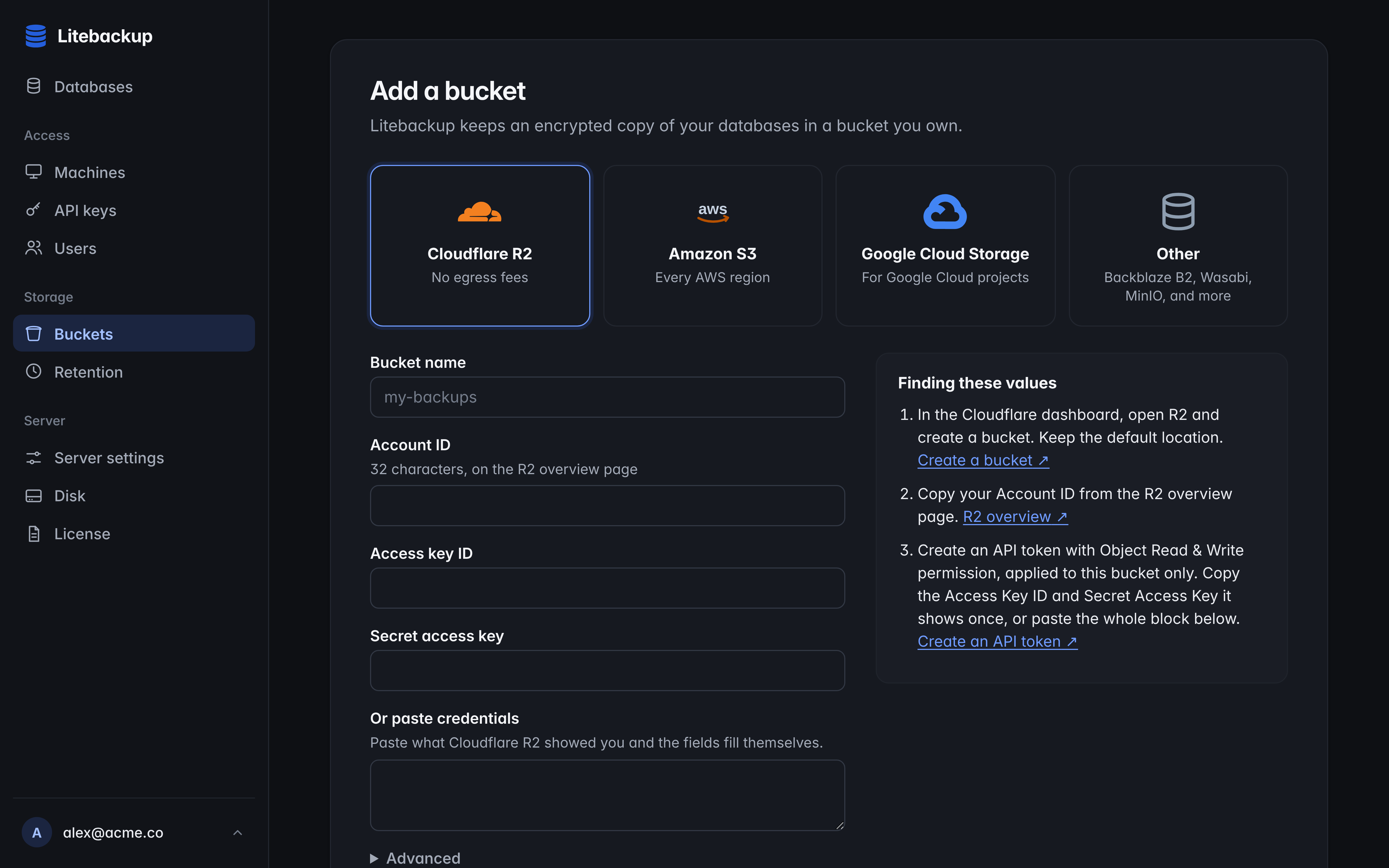
    Connect Amazon S3, Cloudflare R2, Google Cloud Storage, or another S3-compatible store such as DigitalOcean Spaces, Backblaze B2, or MinIO. Litebackup tests reading, writing, listing, and deleting before it enables a bucket, and for S3 the console gives you an access policy that matches it. Use a dedicated bucket or prefix for each server.

  • Encryption

    Your server encrypts every object before it uploads it, with keys that stay on the server. The recovery kit or recovery passphrase you save during setup is what lets a replacement server read those objects, so keep it somewhere other than the server and its bucket.

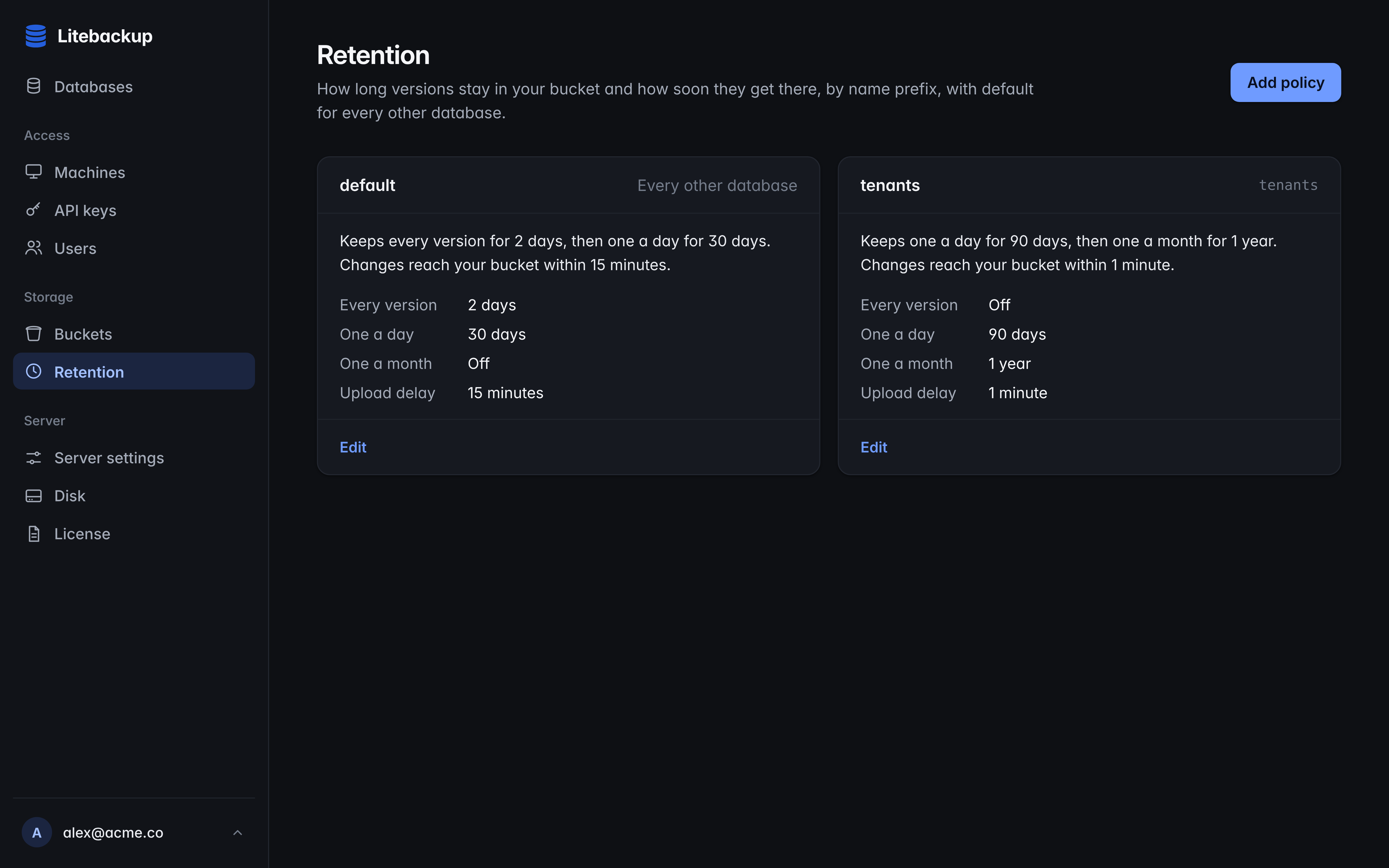
  • Retention

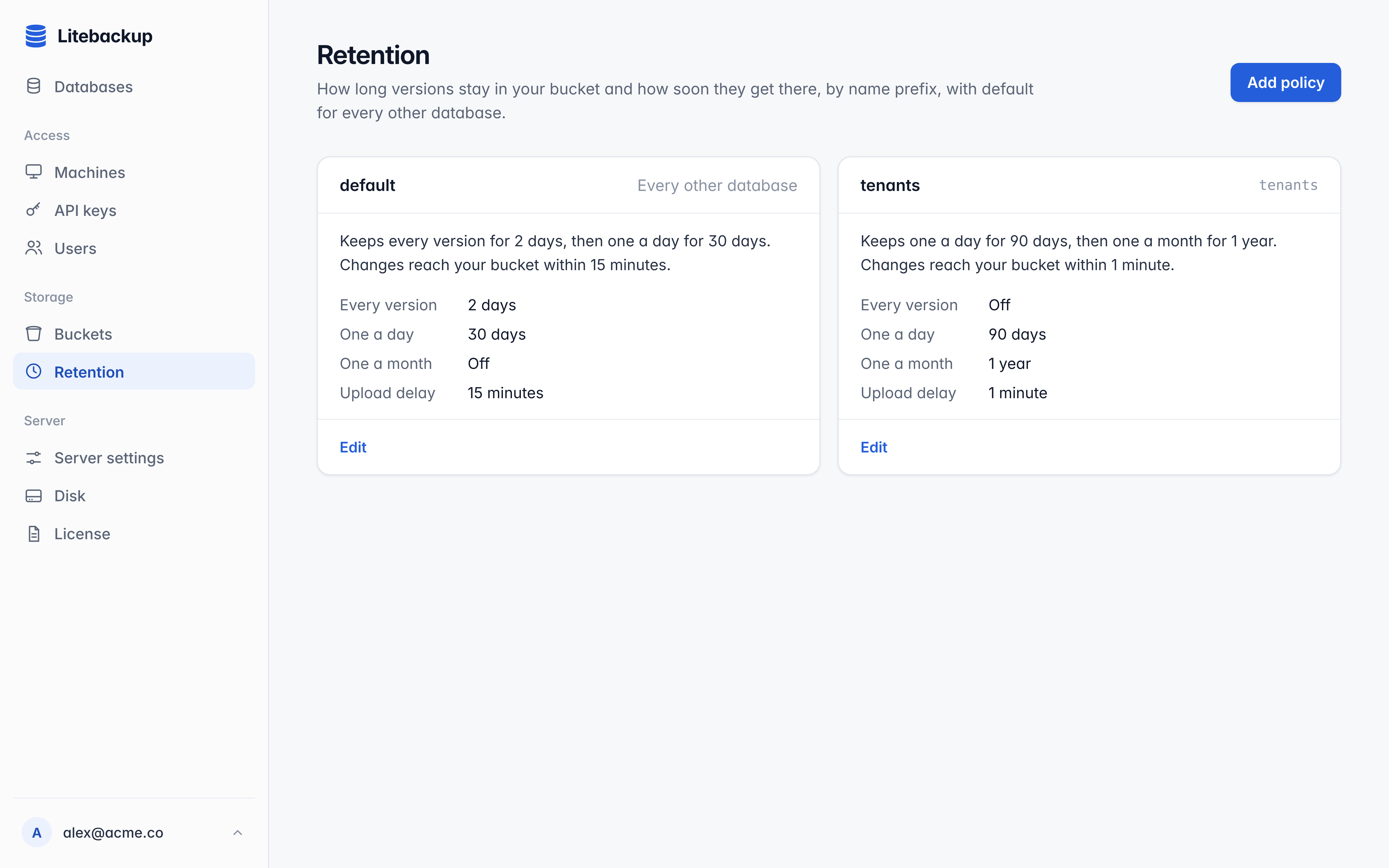
    Choose how far back you can restore, and the console estimates the space that needs on your server's disk and in your bucket before you save. Litebackup removes what retention no longer needs by itself, so avoid bucket lifecycle rules that delete its objects.

  • Server disk and bucket

    Each change reaches your server's disk within seconds and your bucket after the archive delay, 15 minutes by default, which batches many changes into fewer uploads. A wait for the bucket includes that delay, so give scheduled jobs a deadline that allows for it.

  • Networking

    Machines reach your server over HTTPS on TCP 443, and the server manages its own certificate. Behind a load balancer or NAT, forward TCP 443 with TLS passthrough and give the installer the public address with --address.

  • Recovering a lost server

    With your bucket and the recovery kit or passphrase, litebackup server recover rebuilds a replacement server from the versions in your bucket. Stop the old server for good first, recover into an empty data directory, and create API keys again afterwards, because they are not kept in the bucket.

  • Administering from anywhere

    The console covers databases, machines, buckets, retention, disk, and users. litebackup admin login signs the command line in to the same instance, and litebackup admin --help lists everything it can change.

  • Updates

    Update your server from its instance page first, then each machine with litebackup install cli, run as the user that installed it. Keep the npm package and the litebackup command on the same version.

The Add a bucket screen with provider tiles and the fields for Cloudflare R2 The Add a bucket screen with provider tiles and the fields for Cloudflare R2

Works with the bucket you already use

Litebackup checks each bucket before it trusts it, and any store that passes its test works.

Choose how long to keep backups

The retention screen shows which versions you keep and estimates the space they need on your server and in your bucket before you save.

The retention screen with a timeline of kept versions and an estimate of disk and bucket space The retention screen with a timeline of kept versions and an estimate of disk and bucket space

Recover your server, run the client as a service, or build an image

Recovery runs on the replacement server, while the service and Docker examples run on the machines with your databases.

# On the replacement server, with the old one stopped for good.
# LITEBACKUP_BUCKET_SECRET_ACCESS_KEY holds the bucket's secret access key.
litebackup server recover \
    --data-directory /var/lib/litebackup-recovered \
    --provider aws --region us-east-1 --bucket YOUR_BUCKET \
    --access-key-id YOUR_ACCESS_KEY_ID \
    --encryption-key-file /secure/recovery/encryption.key

# With a recovery passphrase instead of the kit's key:
#   --passphrase-file /secure/recovery/passphrase
# Add --prefix if the bucket used one, and --endpoint for R2 and other S3-compatible stores.

Fix the problems people meet most

Most problems show up in litebackup status with a code that says what to change, and this list explains each one.

  • busy

    Another machine backs up that name. Route the database's writes to one machine, or give separate databases separate names or prefixes. Choosing a new name only to avoid the error leaves two copies that drift apart.

  • in_use when acquiring

    Another machine holds the database for a job. Retry later with backoff and the same name, and let your scheduler run one job at a time for each database.

  • not_found

    No version exists under that name. Check the exact name and prefix in litebackup status or the console, and for a new database leave an empty file at the path before you acquire it.

  • still_open on release

    A process still has the file open. Close every SQLite connection, including those in other processes, then release again.

  • exists on restore

    A restore never replaces a file. Choose a new file name in a directory that already exists.

  • not_configured

    Setup is not finished yet. Open the console, connect a bucket, save the recovery kit or set a passphrase, and choose retention, and waiting machines continue on their own.

  • sdk_unsupported

    The client needs a newer SDK. Update your server first, then the litebackup command on each machine, and keep the npm package on the same version.

  • SQLITE_BUSY when writing a replica

    Replicas are readonly, and the client holds their write lock on purpose. Open them readonly in your app and send writes to the machine that backs up the database.

  • A database shows conflicted

    A local copy diverged from your server, and Litebackup saved it as a conflict copy rather than discard it. litebackup conflict list shows where it is, so you can compare it with the current database and keep what your app needs.

  • Waiting for the bucket times out

    Waits for the bucket include the archive delay, 15 minutes by default, so allow for it in deadlines. If waits still time out, check the bucket and free disk space in the console, and the last error that litebackup status shows for the database.

  • The client joined another server

    A client that already joined keeps its server, even when LITEBACKUP_TOKEN changes. Use a separate session with LITEBACKUP_SESSION, or remove the old join with litebackup uninstall service --purge before you join again.

  • No litebackup binary

    The npm package brings the binary through optional dependencies, so keep them enabled when you install. A Go app needs the litebackup command installed, or LITEBACKUP_PATH set to it.

Check the client and read its log

Run these as the user and session your app uses, because another user talks to a different client.

# Run these as the same user, and in the same session, as your app.
litebackup status            # roles, states, versions, and each database's last error
litebackup rules             # what this machine backs up
litebackup replicate list    # replicas and prefix rules
litebackup conflict list     # conflict copies that need a decision

# The client's log, for a user service on Linux:
journalctl --user -u litebackup -f
# For a system service: sudo journalctl -u litebackup -f
# On macOS: ~/.local/state/litebackup/default/daemon.log

Questions

Does Litebackup slow down my app?

Your app keeps writing to its local SQLite file at local speed, with the driver it already uses. The Litebackup client is a separate process that reads committed changes through SQLite's own code and does not write to a database it backs up, so your app never waits for the network or for an upload.

Do I need to change my driver, schema, or queries?

No. Litebackup reads the database file instead of sitting between your app and SQLite, so it works with any driver in any language. Databases in WAL and rollback-journal mode both work, and in-memory databases are the one kind it cannot back up, because they have no file.

Where does my data live?

Your app's files stay on its own disk. Recent versions live on your Litebackup server, and encrypted copies live in a bucket you own on S3, R2, Google Cloud Storage, or another S3-compatible store. Backups go straight from your machines to your server and from your server to your bucket.

How quickly does a change reach my server and my bucket?

A change usually reaches your server within seconds of its commit and your bucket after the archive delay, 15 minutes by default, which you can change in the console. When you need to know a version has arrived, sync() waits for your server, and a foreground backup with wait set to cloud waits for your bucket.

What happens while my server is unreachable?

Your app keeps writing locally as usual, and the client sends each database's current state once your server is reachable again. Foreground backups and waits return an error when their timeout passes, and they never undo a version your server already accepted.

What if I lose the Litebackup server?

Your bucket and your recovery kit or passphrase are enough to rebuild it. litebackup server recover reads the versions in your bucket into a new server, and once you have checked a few restores, your machines can carry on against the replacement.

What is LITEBACKUP_TOKEN, and how should I store it?

It is a join token from Machines, Add machine, followed by @ and your server's address. The client uses it once to join and then saves a key of its own, which you can remove from the Machines page at any time. Treat the token like a password, keep it out of git and job logs, and revoke tokens you no longer need.

Can several machines write the same database?

One machine writes a database at a time, and Litebackup never merges two copies. Failover moves the writer when a server stops, acquire and release hand a database from one job to the next, and any number of other machines can keep readonly replicas.

Which platforms are supported?

Your Litebackup server runs on Linux, on amd64 or arm64. The client, the command line, and both SDKs run on Linux and macOS, on x64 and arm64, and the TypeScript SDK needs Node.js 22 or later. Windows is not supported.

Can I run Litebackup in Docker or Kubernetes?

Your apps and the client can run in containers, as long as the client sees the same database files as your app and its state directory sits on a persistent volume. The SDK repository on GitHub has a Docker Compose example and a Kubernetes CronJob.

Should I keep another backup as well?

For data you cannot lose, yes, as with any backup system. A second, independent backup, such as a nightly sqlite3 .backup copy sent to another provider, means no single system holds the only copy.

What does it cost?

Plans cover a number of databases and machines, and the Free plan lets you try Litebackup on a real app. Your server, its disk, and your bucket are billed by their own providers. The pricing page lists the current plans.

Reference

The tables below list every call in both SDKs and the settings they read. The full reference, with every field of every result, is in the SDK repository on GitHub, and every command of the command line has --help.

SDK calls

Construct a client with new Litebackup({ token, session }) in TypeScript and litebackup.Connect(ctx, &litebackup.ConnectArgs{Token: token, Session: session}) in Go. Go passes a context first and a pointer to the call's Args struct last, and nil uses the defaults.

TypeScript Go Returns when
backups.start(pathOrHandle, options) StartBackup(ctx, path, args) The backup rule is saved on this machine.
backups.once(pathOrHandle, options) Backup(ctx, path, args) The version is on your server, or in your bucket with wait: "cloud".
backups.stop(name), rules.stop(id) StopBackup, StopBackupRule The backup or the whole rule has stopped.
databases.restore(name, { to, version, time }) Restore(ctx, name, args) The new file is written and checked.
databases.versions(name, { after, limit }) Versions(ctx, name, args) It has every kept version, oldest first.
replicas.start(name, { to }) Replicate(ctx, name, args) The first version is on this machine.
replicas.startPrefix(prefix, { to }) ReplicatePrefix(ctx, prefix, args) The prefix is followed, and files arrive in the background.
failovers.start(path, options) Failover(ctx, path, args) This machine has a role, and events report each change.
databases.acquire(name, { to }) client.Acquire(ctx, name, args) This machine holds the database and has its newest version.
databases.release(name, { wait, offload }) client.Release(ctx, name, args) The final changes are safe and the database is free.
databases.offload(name) client.Offload(ctx, name) A released local copy is removed once your bucket holds it.
databases.writer(name) client.Writer(ctx, name) It knows which machine writes the database and until when.
session.status(), databases.get(name), databases.sync(name) Status, Database, Sync It has the state of this machine's databases, and databases.sync waits for your server.
conflicts.list(), conflicts.delete(id) Conflicts, DeleteConflict It has listed or removed conflict copies.
close(), session.shutdown() Close, Shutdown This connection is closed, or the whole client has stopped.

Options

Go fields have the same names, capitalized. TypeScript durations are milliseconds or strings such as "30s" and "2m", and Go uses time.Duration.

Call Options
backups.start name for an exact name, prefix for a namespace, and maximumLocalDatabases to offload idle files above a count
backups.once name, prefix, wait ("server" by default, or "cloud"), timeout, and in TypeScript signal
replicas.start to, timeout, and writeProtection: "lock" (the default), "detect", or "none"
failovers.start name and timeout, with the events origin, replica, conflictSaved, and error (Go: OnRoleChange, OnConflictSaved, OnError)
databases.acquire to, timeout, machineLabel, offload: "released" (Go: OffloadReleased), maintenance for a checkpoint and VACUUM on release, and onLost: "block" (Go: BlockOnLost) to block writes instead of saving a conflict copy
databases.release wait ("server" by default, or "cloud"), offload, and timeout
databases.restore to, and either version or time

Environment

Variable What it sets
LITEBACKUP_TOKEN The join token and server address, JOIN_TOKEN@HOST, used the first time a client joins.
LITEBACKUP_SESSION The client session, default when unset. Separate sessions keep separate local settings.
LITEBACKUP_PATH The litebackup binary the SDKs start, instead of the one npm installed or the one on PATH.
XDG_STATE_HOME Where a per-user client keeps its identity and backup rules. Put it on a volume in containers.
XDG_RUNTIME_DIR Where a per-user client puts its socket when no service install recorded one.

States and errors

Every database on a machine has a role, origin or replica, and one of these states.

State What it means
syncing Changes are on their way to your server.
synced Your server has every change.
waiting Another machine writes the database.
offloaded The local copy was removed, and your bucket holds it.
stopped Litebackup no longer follows the file.
conflicted A conflict copy needs a decision.
error The database's last error says what to fix.

Errors from the client are LitebackupError in TypeScript and *litebackup.Error in Go, which litebackup.IsCode(err, "in_use") checks. Their code is one of busy, in_use, not_found, exists, still_open, timeout, not_configured, or sdk_unsupported, and the troubleshooting section above explains each.

Command line

Top-level commands such as start, backup, restore, replicate, failover, acquire, and status go to the client on this machine. litebackup server runs on your Litebackup server's own host, litebackup admin reaches your instance over HTTPS after litebackup admin login, and litebackup account manages your litebackup.com account. Add --stdout-format json to any command for JSON output. The command line page has the flags for each task.

Guides

Guide What it covers
Back up SQLite Continuous backup for a running app, step by step
Point-in-time restore Choosing the right version and checking the copy
Restore a deleted row Bringing back a few rows without replacing the database
Replicate SQLite Readonly copies for reporting and search
High availability Failover between servers behind a load balancer
SQLite in Docker A pinned image, persistent volumes, and a Compose example
Cron and Kubernetes Scheduled backups that alert when a run fails
Temporal Databases inside Temporal activities and schedules

When you report a problem, include the SDK and client versions, the operating system and architecture, whether the client runs as a service, the call or command, and the error code. Leave out join tokens, bucket credentials, recovery material, and the contents of your databases.

Install

Install your Litebackup server and back up a first database in minutes: install, or see pricing.